-
Administration Interface
LabBook has an administration interface (by default with the "root" login, and password "root"). From this, a large number of settings are available.
In this section, we will explore these different settings.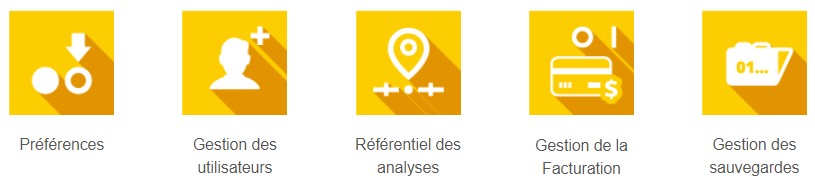
-
-
-
-
Students mustMark as doneStarting with LabBook 3.3, new functions are available such as Activate/Deactivate analyzes from the analysis repository and Underline examination results (for example scientific names).
-
-
-
-
Students mustMark as doneWith LabBook 3.3, a new icon has been introduced in the LabBook interface:

It indicates on the home page of each profile if the backup has been correctly performed. The goal is that collectively, the entire laboratory team can easily identify if the backup of the database is encountering a problem. It is indeed critical that backups can take place regularly to ensure efficient recovery in the event of a failure, for example.
The icon is green, everything is fine. The icon is red, the backup was not carried out correctly; so you have to go check it out. -
-
-
-
Students mustMark as doneWithin LabBook, many documents can be personalized. All you have to do is change the document template or even offer several templates to edit them according to your needs.
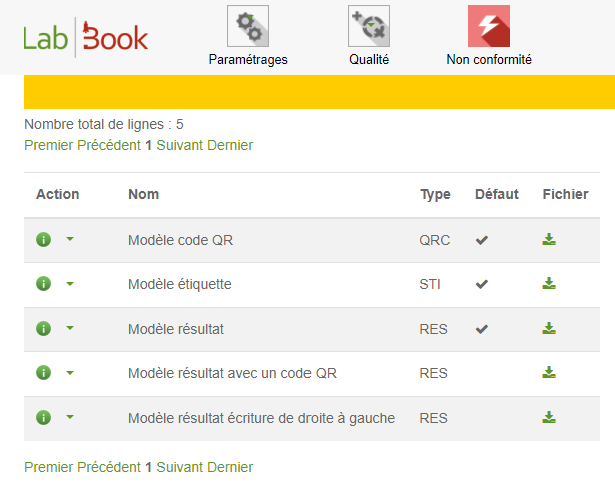
This concerns results, labels and results with QR Code. -
-
Students mustMark as done
The audit log is a feature introduced in version 3.6 of LabBook aimed at enhancing the traceability, security, and transparency of operations performed within the system.
It automatically records all sensitive actions carried out by users, such as logins and logouts, as well as operations on user accounts, etc.
-
-
-
Students mustMark as done
The Automation feature, introduced in version 3.6 of LabBook, allows users to configure and schedule the automatic execution of key system tasks, including data transfer and report generation.
It helps improve the consistency of operations, data reliability, and the overall operational efficiency of laboratories.
The feature can be accessed via: Integrations → Automation Configuration. Access is restricted to users with the appropriate permissions, as assigned by the administrator.
-
-
-
Students mustMark as done
Starting from LabBook 3.6, the patient results delivery feature is available. To use it, you must configure delivery methods in LabBook for sending laboratory test reports to patients who have given their consent, as well as to prescribing clinicians.
The configuration of delivery methods includes setting up SMTP, Mailjet, and WhatsApp methods, creating the associated message templates, and integrating them with LabBook.
Delivery methods define how LabBook transmits validated results. Each delivery method must always be associated with a message template.
-
-
-
-
If you continue browsing this website, you agree to our policies:
x

Administration Interface
Top Block Position
Bottom Block Position